
A Simple Guide to Understanding the “Paper Size Mismatch” Message
🖨️Understanding the “Paper Size Mismatch” Message During Printing Seeing a “Paper Size Mismatch” message while printing can be confusing at first. This message usually appears...
Read More
A Step-by-Step Guide to Wireless Printing from an iPhone
📱A Step-by-Step Guide to Wireless Printing from an iPhone Wireless printing allows iPhone users to send photos, documents, and emails to a printing device without...
Read More
How to Add a Printer to a Chromebook Step-by-Step
🖨️How to Add a Printer to a Chromebook (Step-by-Step Guide) Printing from a Chromebook becomes straightforward once you understand how Chrome OS recognizes connected printing...
Read More
How to Fix a Printer That’s Still Not Printing in Color After Deep Cleaning
🖨️How to Fix a Printer That Isn’t Printing in Color When a printer suddenly starts printing only in black and white, it can be confusing...
Read More

How to Connect a Printer to Wi-Fi: Easy Step-by-Step Guide
🖨️How to Set Up a Wireless Printer: A Simple Step-by-Step Guide A wireless printer lets you print directly from a computer, smartphone, or tablet —...
Read More
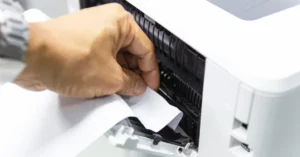
How to Clear a Paper Jam in Your Printer
🖨️How to Clear a Paper Jam in Your Printer (Step-by-Step Guide) Nothing disrupts your workflow faster than a paper jam. Luckily, most jams are easy...
Read More

How to Clear the Printer Queue: Simple Solutions That Work
🖨️How to Clear the Printer Queue on Windows and Mac (Easy Step-by-Step Guide) Ever sent a document to print and then realized it was the...
Read More
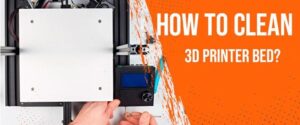
Easy Ways to Remove 3D Prints and Keep Your Printer Bed Clean
🖨️How to Safely Remove Stuck 3D Prints from Your Printer Bed Nothing is more frustrating than a 3D print stuck firmly to the build plate...
Read More